


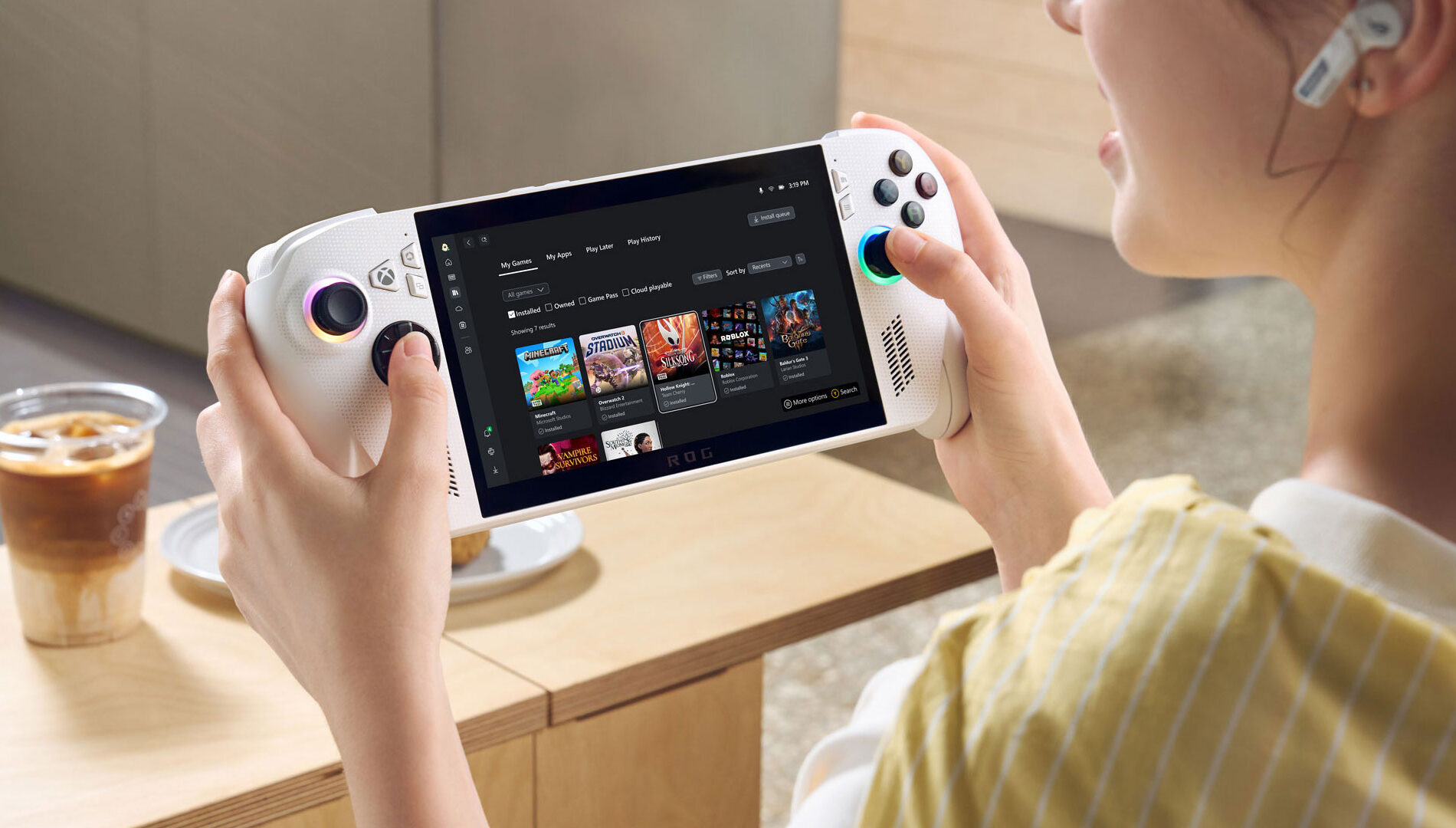
So you’ve picked up what is likely the most powerful handheld PC in the world, the ROG Xbox Ally X. Or you’ve opted for its more conservatively priced and moderately specced counterpart, the ROG Xbox Ally. Before you set out on your gaming journe, here are a few things to know to get the best experience and get a leg up on mastering either device.
As is evidenced by my review of the ROG Xbox Ally X, there’s some stuff that you need to know. Rather than offering a portable version of the Xbox Series experience, these handhelds offer Windows gaming in its most maximal form. With weeks of testing, here’s what I have to share with you:
#1 — Set your power button for ‘Hibernate’
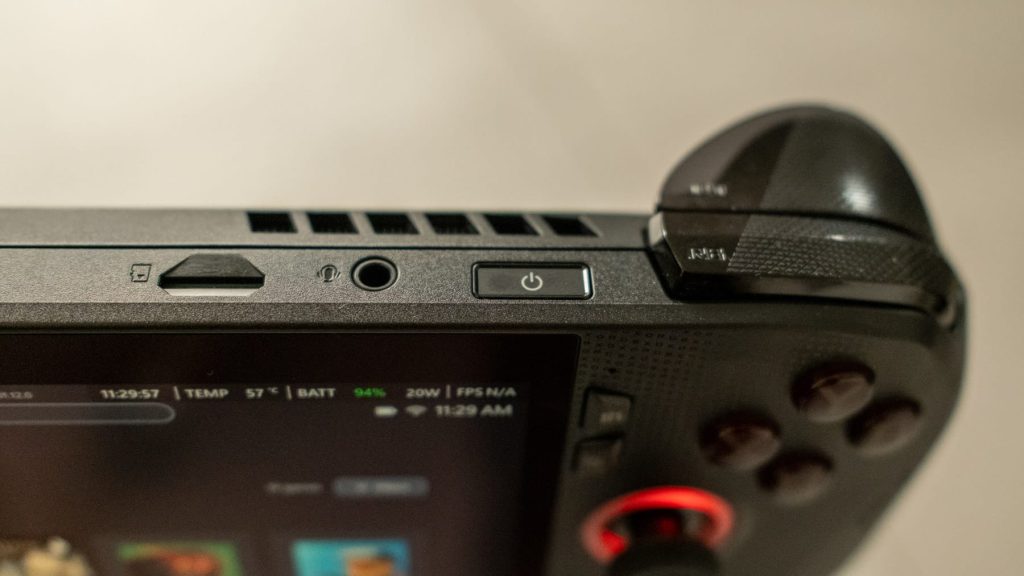
It’s unfortunate that the Asus ROG Xbox Ally doesn’t match the Series consoles with the really cool Quick Resume feature, but you can at least opt for the standard “Hibernate” mode to duplicate that functionality, albeit less optimally. Head to the Settings menu and set the Power button so that your handheld goes into “Hibernate” when you press it.
“Hibernate” lets you save battery more than “Sleep,” but at the expense of a longer wake up process. It can still act up, many times it’ll boot up without a hitch and sometimes you’ll crash your game. Still, in the absence of Quick Resume, this is your best resort.
#2 — AMD Radeon Super Resolution (RSR) is your friend
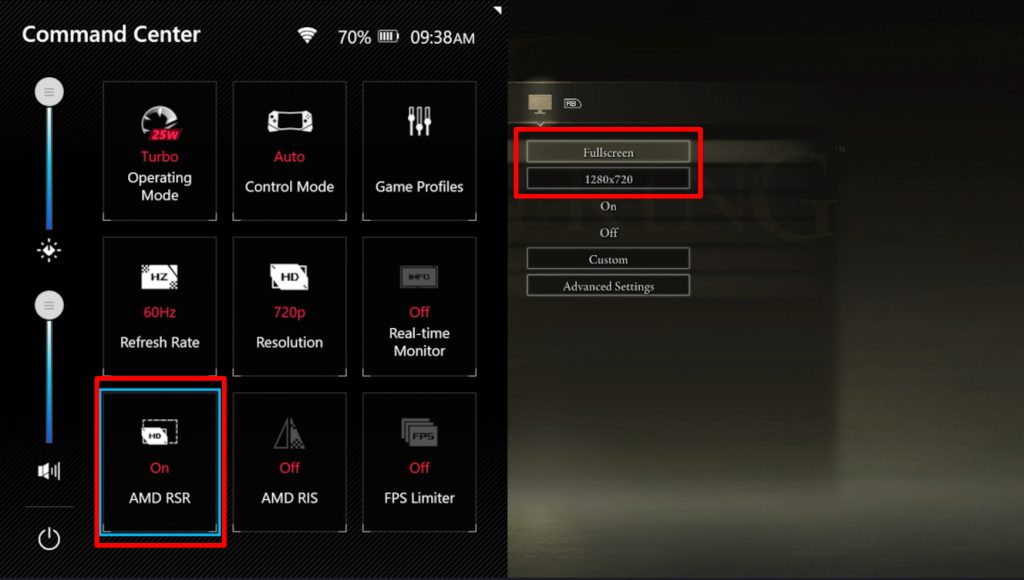
AMD’s FidelityFX Super Resolution (FSR) upscaling solution allows games to scale resolution and generate frames dynamically for smoother performance. This piece of software tech is fairly well established and yet there are still some games – even major releases like Doom: The Dark Ages and Indiana Jones and the Great Circle – that do not fully support it.
For those games, try out AMD RSR. It’s an upscaling alternative you can find in the Command Center menu. It operates at the driver level, alongside other tools in the Armoury Crate application that is packed into your ROG Xbox Ally.
#3 — Explore performance using the real-time monitor

While your own two eyes are a serviceable means of determining how well your games are performing, for granular detail consider activating the real-time monitor. You’ll find it in the Command Center. Turning it on will display things like battery, internal temperature and frame rate and you can customize whether it shows up as a top border display or as a rectangular overlay.
Using the real-time monitor is more than just getting stats, it’s a way to see when and why your fans are going loud or frames are getting choppy. Use that information to tweak graphical presets, resolution and other things you think you might need to get the performance you desire.
#4 — Customize your gamepad and desktop controls
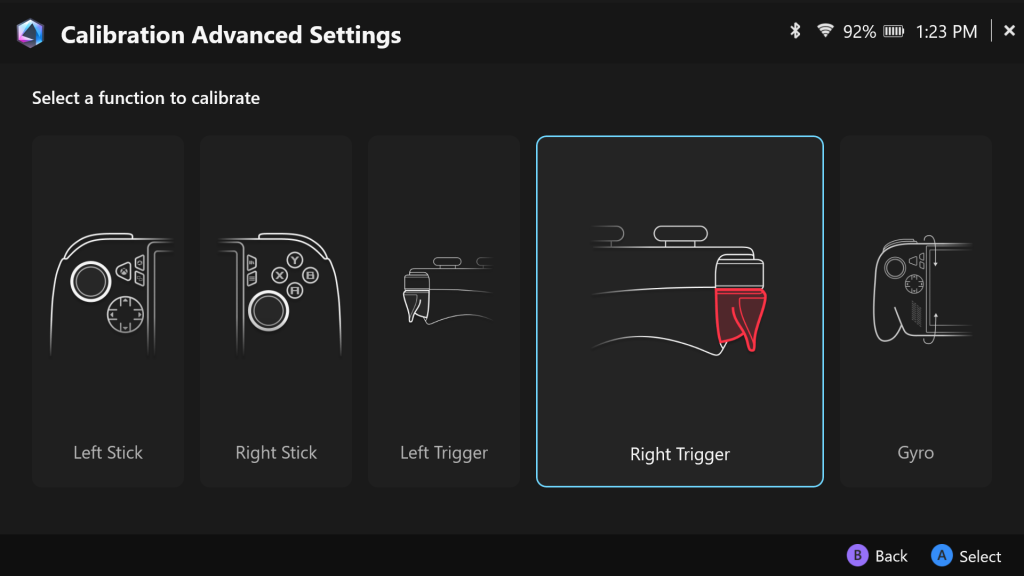
There are different ways to control your ROG Xbox Ally. By default, you’re expected to be using the gamepad controls for most things but you can switch to desktop controls in the Command Center. It’ll also let you substitute a mouse with the right stick.
You can further customize your controls via the Armoury Crate by selecting “Configure” from the Control Mode panel. You can remap the different buttons of the gamepad, adjust trigger sensitivity and use “Game Profiles” to set up configurations for specific games and apps.
#5 — Learn which Widgets are for you
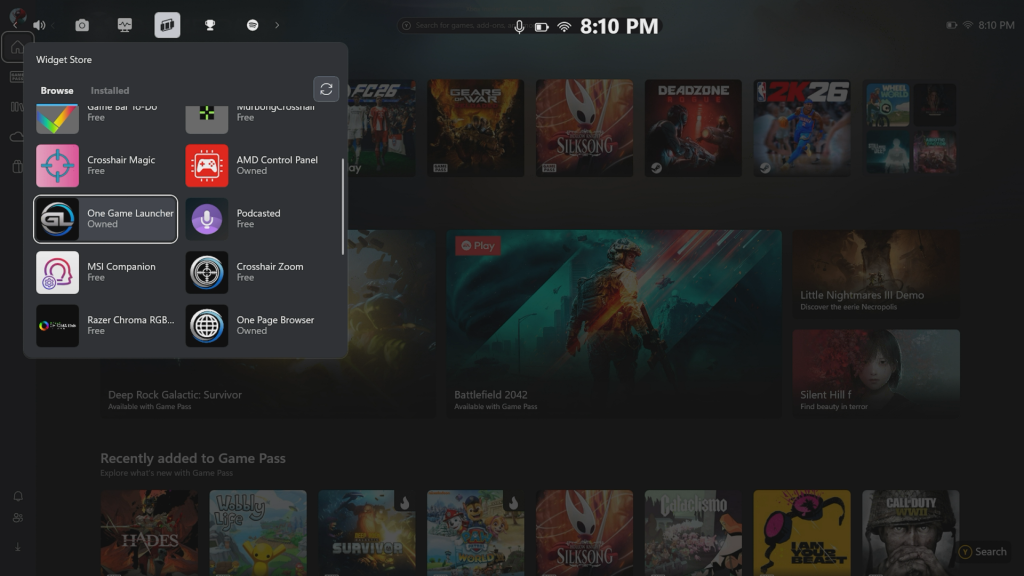
The ROG Xbox Ally is a handheld gaming PC, so you might as well make the most of that fact by adding a bunch of cool widgets to make for a more robust experience. We’re talking stuff like Spotify, because what is gaming if you can’t pop some tunes? Simply press the Xbox button and tap the right shoulder button (RB) until you reach “Widgets.”
Here you’ll find the Widget Store, which will allow you to install the aforementioned uh, widgets. Once installed, you’ll find it in the guide menu, which means that you’ll be able to find Spotify along the same scroll that you found the Widget Store. Convenient! At least, until you have too many Widgets
#6 — Get used to task switching via the Xbox button
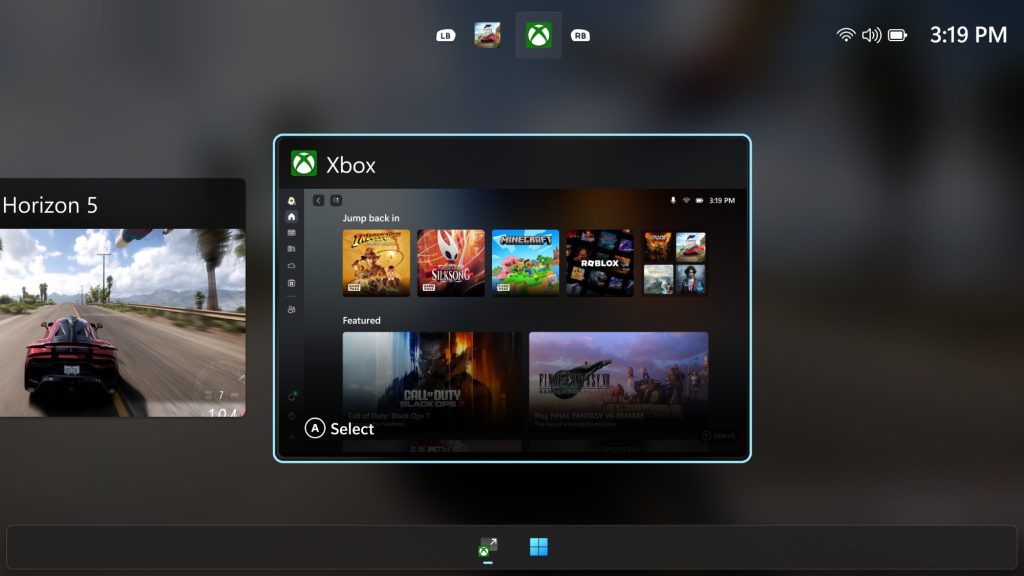
Tabbing between windows is a way of life for PC users, but it’s not exactly something you think about on a handheld gaming device. Get used to doing it on the ROG Xbox Ally if you have any interest in maxing out your experience. You’ll be tapping the Xbox button to mess around with your configuration, explore captured moments, and checking Xbox socials.
Holding down or long pressing that button is how you’ll see all your tabs. To ensure you’ve got all the hardware resources you need, you’ll have to be vigilant about closing them. That’s how you make sure you don’t have too many applications slowing you down. It’s also how you can get into desktop mode and access the conventional Windows desktop experience.
#7 — Restart to Xbox full-screen experience whenever you can
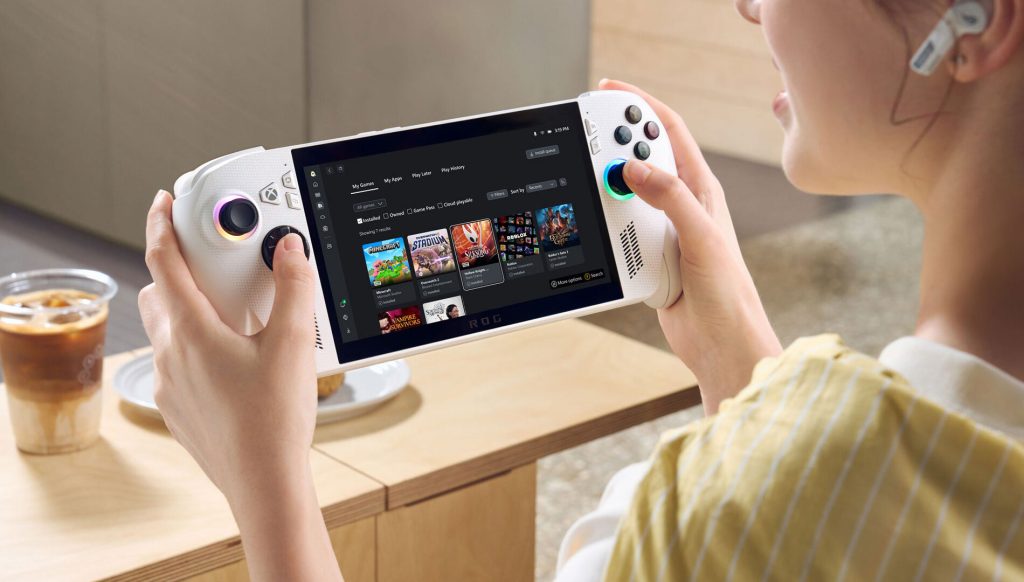
When you return to the Xbox layer from the Windows desktop, your ROG Xbox Ally will ask if you want to restart your system. To that say yes. You want to do that every time you’re asked.
Doing so returns you to the optimized / streamlined version of Windows 11 that guarantees you continue to have an optimal Xbox experience. Under the hood, the restart will disable processes specific to Windows that you don’t need when playing games. So even though you have to wait under half a minute, it’s rather ideal.
