


Life can now be so much easier with Galaxy AI, the revolutionary mobile AI technology built to push boundaries of creativity, productivity and leisure. Now, Samsung has made it more accessible with the One UI 6.1 update on the Galaxy S23 series, Galaxy Z Flip5, Galaxy Z Fold5 and Galaxy Tab S9 series devices. More users can take advantage of this innovative mobile AI experience.
Here’s how you can start making Galaxy AI a part of your daily life.
Start your epic Galaxy AI journey
First, make sure your Galaxy device has the latest software version – One UI 6.1. If you don’t have the update yet, just go to Settings, then open up the Software Update page and tap on Download and Install.
Now you can begin your Galaxy AI journey by creating a Samsung account to have unlimited access to the powerful features of Galaxy AI. On your Samsung device, go to Settings, then Accounts and Backup, click on Manage Accounts then Add Account.You can also opt to set an account directly on the Samsung website (account.samsung.com) by clicking Create Account. Follow the steps and start filling up your personal information. You will also need to set up a Two-step verification. Lastly, validate your email so you can start using your Samsung account.
Transform your photos from raw to pro
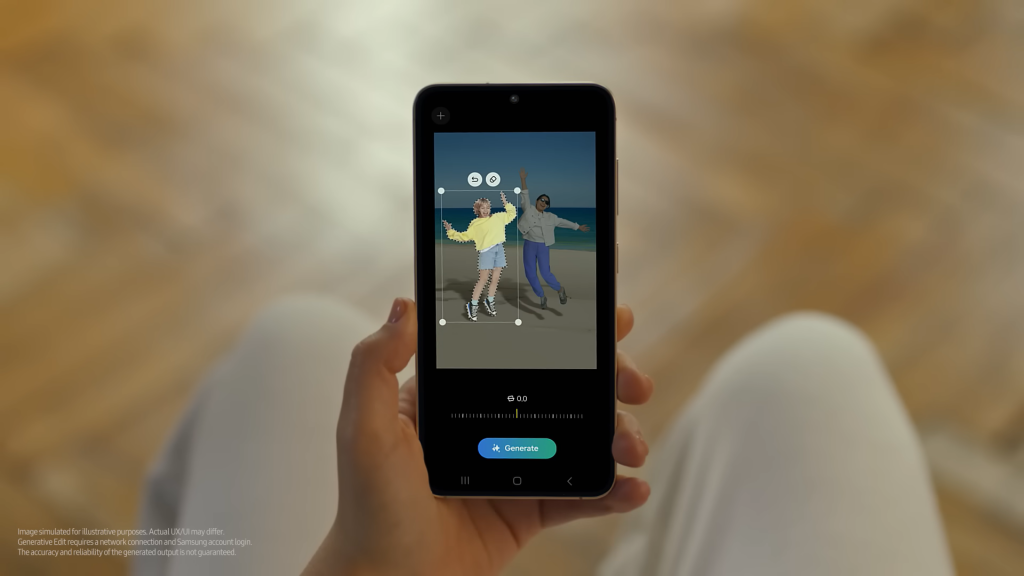
Hone your skills in photo editing through Photo Assist. Use the Generative Edit feature to resize, remove, and reposition objects to make your photos look clutter-free.
Start by selecting a photo that you would like to edit on your Gallery. Enable editing mode then tap the blue AI icon. Encircle the specific object you would like to edit, tap and hold, then you can choose to delete, move, or resize it. Once satisfied, tap Done and save as a copy.
Generative photo editing can also be used to tilt and align the objects in the image. It will also provide additional output suggestions after generating to work magic on your photos.
Break communication barriers on your travels

GalaxyAI introduces Live Translate, a live interpreter assistant that can translate foreign languages and even do the talking for you through its AI translator. It can be used either through text or phone call or as a direct interpreter.
To enable Live Translate, look for Settings and tap on Advanced features. Under the Advanced features tap on Phone and switch on the Live Translate feature. After turning on the feature, you can select your preferred language for yourself and for the person you’re talking to.
After enabling Live Translate, you can now also use the Call Assist Feature. Just tap on Call Assist upon dialing, then Live Translate and let the AI translation lead the conversation for you. You will also need to download your preferred language packs since this is an on-device feature. To download, simply go to General Management in your Settings, click on Language Packs, and you will see a list of available languages for download.
You can also translate messages through Chat Assist. First, open the conversation then tap on the Writing Assist icon found on your Samsung keyboard. Then select your preferred translation language. The translated text will appear below its original version. For a direct interpreter function, simply pull down your Quick Access Panel, tap on Interpreter, then tap on the microphone to speak directly into the device. Then watch Interpreter do its magic!
Maximize your browsing experience

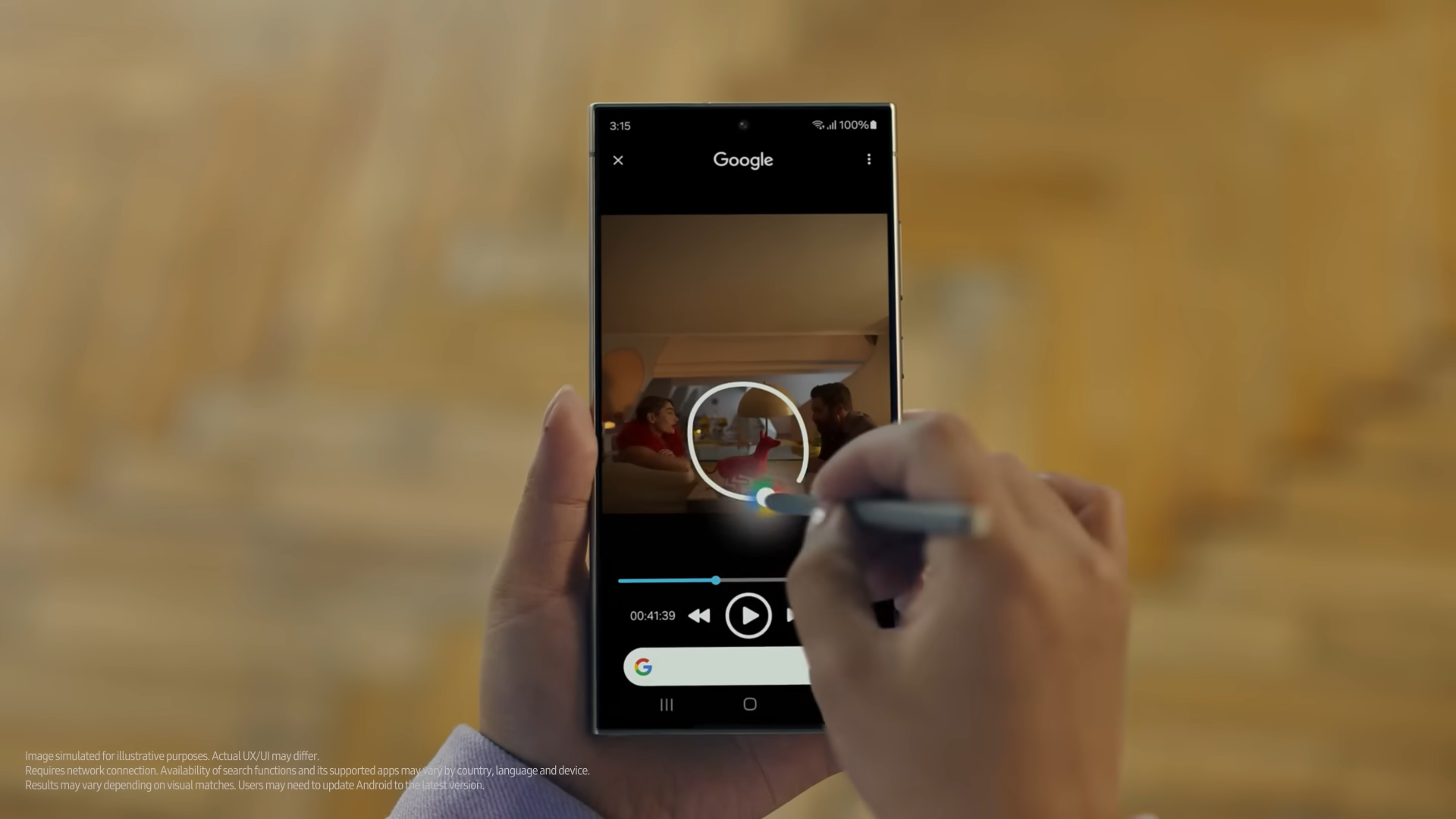
Samsung has now made it possible to search for any image or text through its Circle to Search feature. With its collaboration with Google, Galaxy AI enables users to search the internet just by drawing a circle around an object you would like to know more about.
To enable Circle to Search, open Settings then tap on Display. Look for the Navigation Bar then switch on Circle to Search.
To use Circle to Search, long press the Home key of your Galaxy phone or the Navigation Bar, then draw a circle around the object of interest. Google will automatically search for information. If you need to narrow down your search, you can add more keywords on the search bar where it says “Add to your search”.
Galaxy AI also has a Browsing Assist feature which summarizes and translates articles on the web in a snap with just a tap. To enable it, go to Samsung Browser, look up anything on the web and once you select an article, tap on the AI icon. Select whether to translate or summarize the article and Galaxy AI will automatically show the results. The summarize and translate tools also work in downloaded PDFs on your device and voice recording transcriptions.
If you’d like to purchase a Galaxy device, don’t miss the epic deals of up to 50% off offered during the Galaxy Summer Sale, happening now until April 30, 2024. Stay updated on the latest happenings about Samsung by following Samsung on Facebook, Instagram, and X (Twitter).
